Home > Key Programming Tools > 2026 Xhorse Volkswagen MQB Support Add Key & All Key Lost License Suitable for Key Tool Plus Pad or VVDI2 + VVDI Prog

2026 Xhorse Volkswagen MQB Support Add Key & All Key Lost License Suitable for Key Tool Plus Pad or VVDI2 + VVDI Prog

SKU: XNR-SS408
0.0 (0)
0 Sold
$239.00 $0.00
  1. Xhorse Volkswagen MQB Support Add Key & All Key Lost License.
  2. Suitable for Key Tool Plus Pad or VVDI2 + VVDI Prog Package.
Received successfully
Coupon Code
CONTINUE SHOPPING
Quantity:
  • 2026 Xhorse Volkswagen MQB Support Add Key & All Key Lost License Suitable for Key Tool Plus Pad or VVDI2 + VVDI Prog
  • 2026 Xhorse Volkswagen MQB Support Add Key & All Key Lost License Suitable for Key Tool Plus Pad or VVDI2 + VVDI Prog
1/1
  • 2026 Xhorse Volkswagen MQB Support Add Key & All Key Lost License Suitable for Key Tool Plus Pad or VVDI2 + VVDI Prog
Frequently Bought Together
more
Frequently Bought Together
  • Description
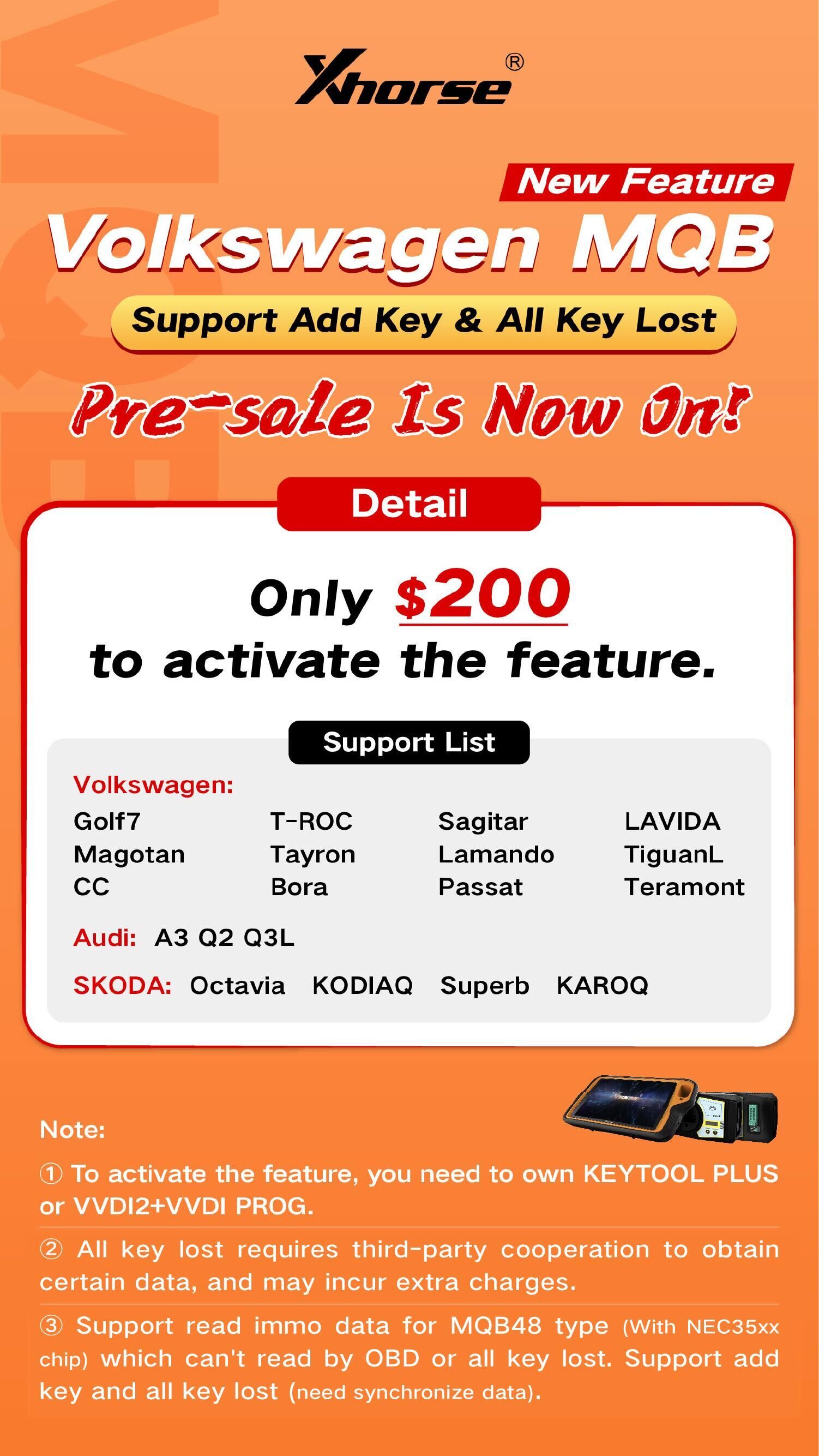
  1. Xhorse Volkswagen MQB Support Add Key & All Key Lost License.
  2. Suitable for Key Tool Plus Pad or VVDI2 + VVDI Prog Package.
Xhorse Volkswagen MQB Support Add Key & All Key Lost License


Support List:

For Volkswagen: 
Golf 7, Magotan, CC, T-Roc, Tayron, Bora, Sagitar, Lamando, Variant, Passat, Lavida, TiguanL, Teramont

For Audi: A3, Q2, Q3L
For Skoda: Octavia, Kodiaq, Superb, Karoq

Notes:
1. Suitable for Key Tool Plus Pad or VVDI2 + VVDI Prog Package.
2. If you need to use this MQB license on VVDI2 and VVDI Prog package, VVDI2 has to be full version and please pass us serial number for both of them. Kindly make sure they are already combined the in the Xhorse APP.
3. All key lost requires third-party cooperation to obtain certain data, and may incur extra charges.
4. Support read immo data for MQB48 type (with NEC35XX chip), which can't ready by obd or all key lost. Support add key and all key lost (need synchronize data).

Xhorse Volkswagen MQB Support Add Key & All Key Lost License

How to combine the device with Xhorse app?

First, use the upgrade kit to identify vvdi2 or vvdi prog, click on the binding in the upper right corner, and it will come up with a QR code.  
Then, find the cartoon character interface on the mobile APP, click on account in the lower right corner, there is a "combind device", click "combind device", and scan the QR code for binding.

After these steps, you can see it from your account.

CUSTOMER REVIEWS

0.0 0 Reviews
Write a review
Message Us